We received many messages from Samsung users complaining about intermittent call drop issues. If you have a Samsung Galaxy phone and experience the same call drop issues, here’s what you should do to fix the problem.
1. Restart your Phone
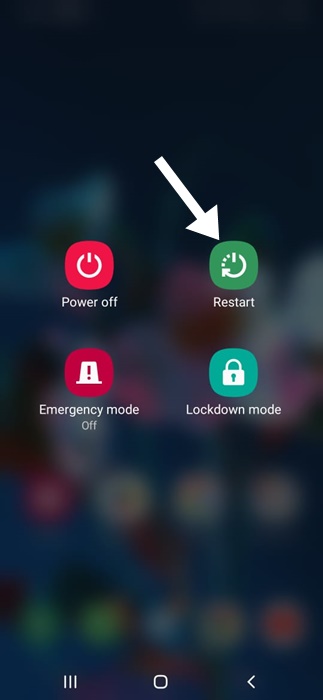
A simple restart can sometimes fix complicated phone problems, including call drop issues.
You should understand that call drops are not directly linked to bugs and glitches, but sometimes they work. So, restart your Samsung Galaxy Phone before trying the next methods.
2. Check the Phone Signal Strength
If your phone’s signal strength is poor, it’s possible to get issues while accepting or making calls. Call drop issues are usually linked with poor network signal strength; hence, it’s essential to rule out such issues first.
If the network signal strength is poor, you can move to a different location with good signal strength and then make a call.
3. Rule out the Network Issues
Chances are that your telecom provider is experiencing temporary problems, which are causing call drop issues.
You can ask your friends who use the same network whether they face the same problem. If they also experience call drop issues, you must ask your telecom provider to resolve them.
4. Turn On/Off the Airplane Mode
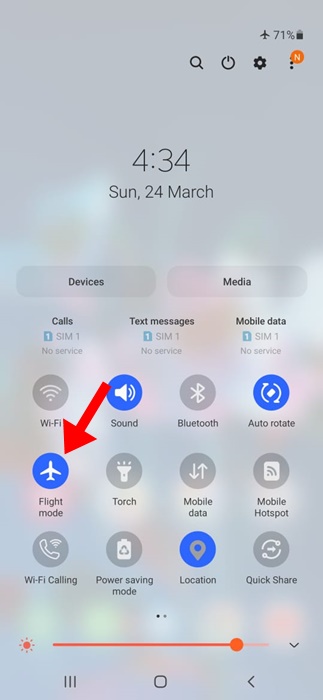
Enabling the Airplane mode will turn off all radio communication on your Samsung Galaxy phone. Once the radio communications are turned off, the Galaxy phone randomly dropping calls issue will likely be resolved.
Disabling the Airplane mode will also force your Galaxy phone to reconnect to the nearest cell phone tower, possibly fixing the call drop issue.
Open the notification center on your Samsung Galaxy phone and tap the Airplane mode icon. Once enabled, wait for a minute and turn off Airplane mode again.
5. Turn on the WiFi Calling
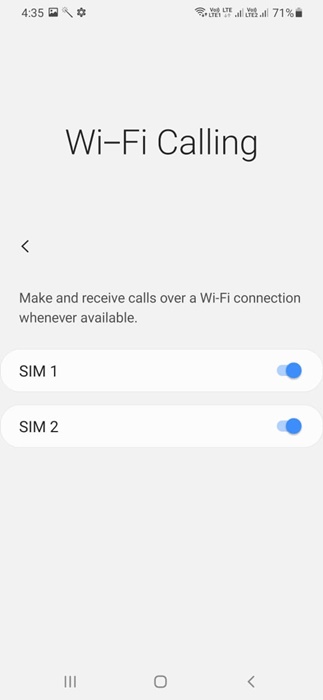
WiFi Calling is a feature for users living in low or bad-connectivity areas. It lets users make and receive calls using a WiFi network. If the network signal strength is usually low, you can fix the call drop issues by enabling the WiFi calling feature.
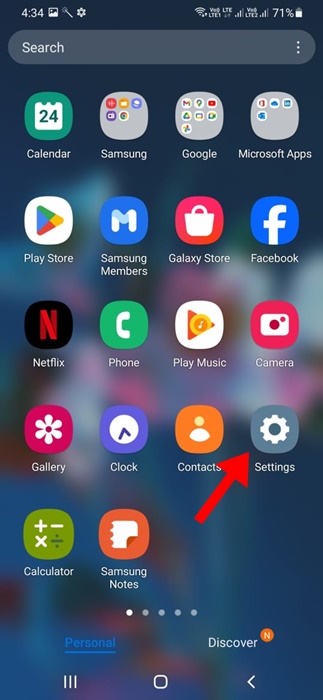
1. Open the Settings app.
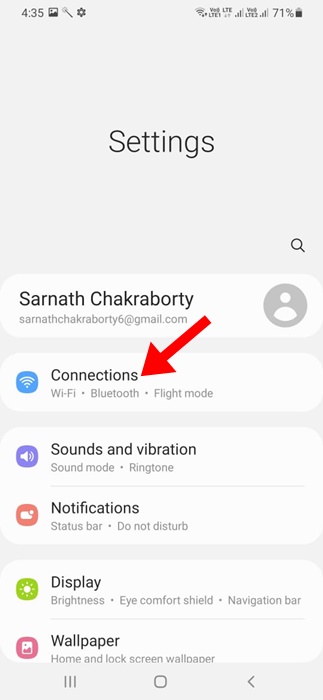
2. Tap on Connections.
3. Turn on the toggle for WiFi Calling.
6. Enable Auto Select for Network Operators
Enabling auto select for network operators will force your Samsung Galaxy phone to find and connect to the best available network operator near you. If your Samsung phone frequently experiences call drop issues, it’s best to enable auto-select for network operators.
1. Launch the Settings app.
2. Tap on Connections.
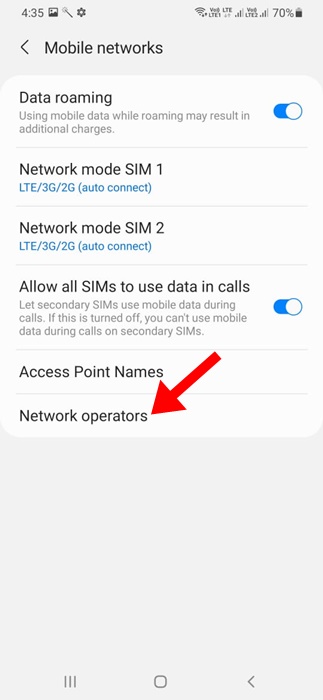
3. Tap on Mobile Networks. On the Mobile Networks, tap on Network Operators.
4. Enable the toggle for Select Automatically.
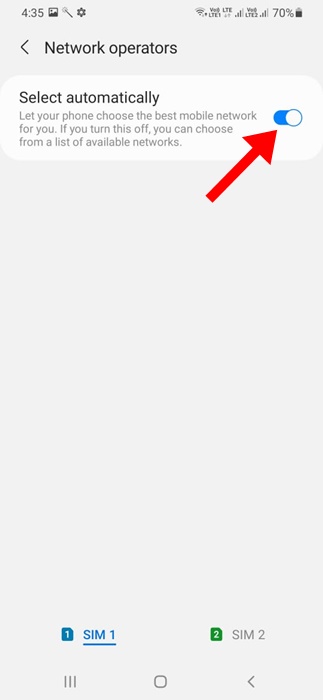
Your phone will now choose the best mobile network for you. This option is likely to fix the Call drop issue.
7. Remove & Reinsert the SIM Card
A wrongly inserted SIM card could cause a random call drop on a Samsung Galaxy phone. You can fix this issue by removing and reinserting the SIM card in your Galaxy phone.
Use a SIM ejector to open the SIM card tray and remove the SIM Card. Once removed, clean the SIM card with any soft fabric and reinsert it. After inserting the SIM, turn on the Samsung Galaxy phone again and wait for the network bars to appear.
8. Clear the Phone App Cache
Clearing the phone app cache has helped many Samsung Galaxy phone users fix the call drop problem. If the phone app cache is corrupted or has an existing issue, the phone app may lag, create problems while making/receiving calls, etc. Clearing the existing cache file saved by the Phone app can rule out a corrupted cache.
1. Open the Settings app.
2. Tap on Apps.
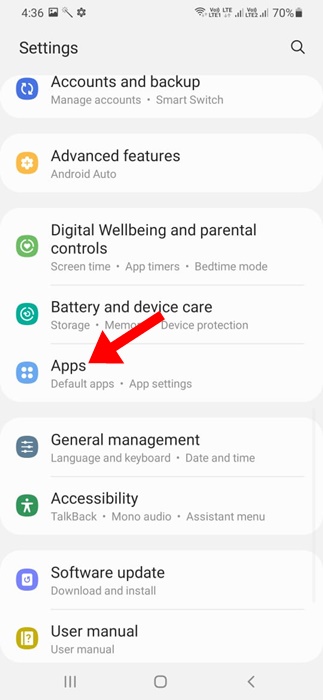
3. Find and tap Phone.
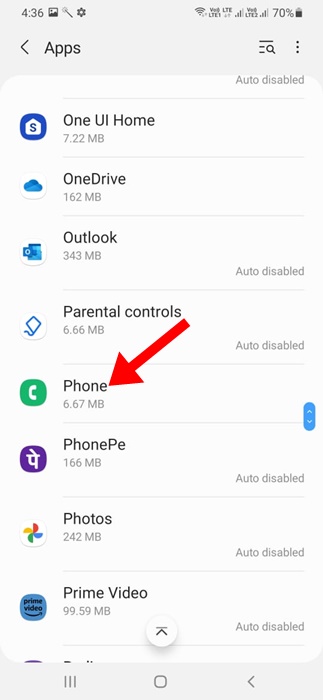
4. Tap on Storage.
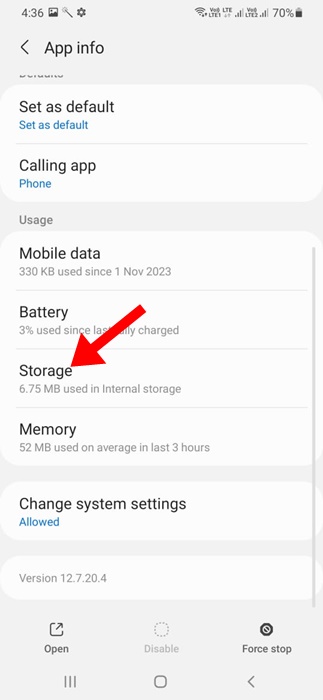
5. Tap on Clear Cache.
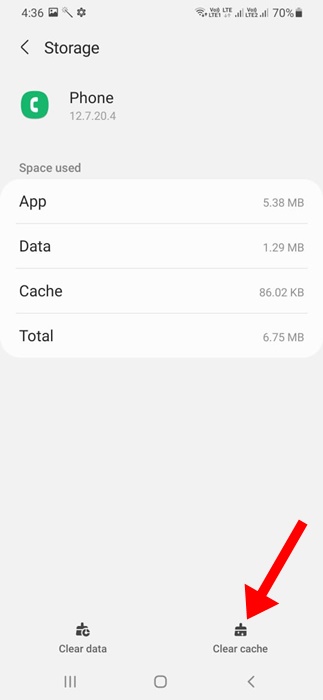
After clearing the Phone App Cache, open it and make a call. Check whether the call drop issue is fixed.
9. Reset the Network Settings
Resetting the network settings will remove all custom settings that may conflict with the calls. However, resetting the network settings will delete all saved Bluetooth devices, WiFi networks, mobile network settings, etc.
1. Open the Settings app.
2. Tap on General Management.
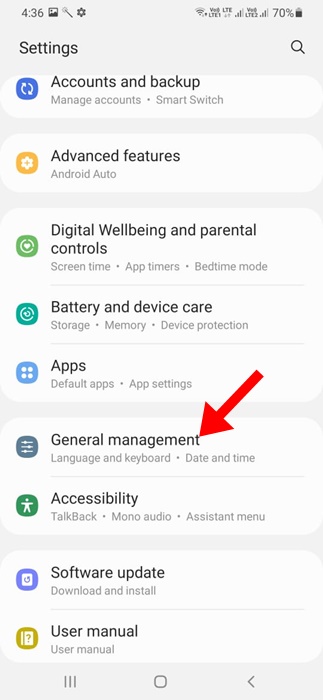
3. Tap on Reset.
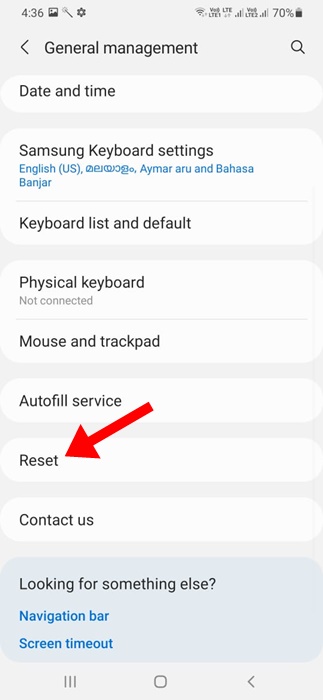
4. Tap on Reset Network Settings.
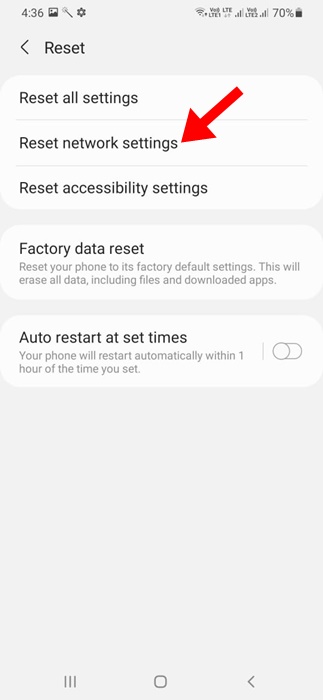
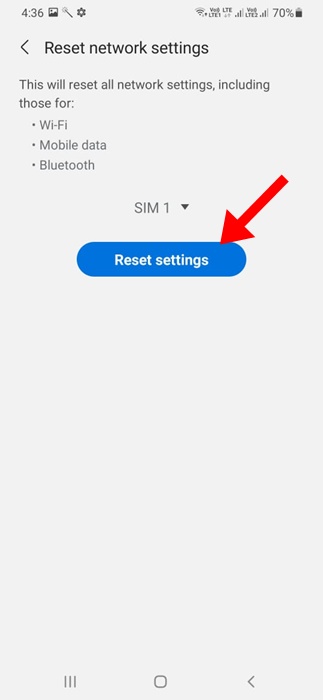
5. On the Reset Network Settings screen, tap on Reset Settings.
10. Install pending software updates
Software updates are important for a phone’s proper functioning and stability. If you’re still experiencing call drop issues on your Samsung Galaxy phone, it’s likely due to a software bug. Here’s how you can install all pending software updates.
1. Open the Settings app.
2. Scroll down and tap on Software Update. On the Software Update screen, tap on Download and Install.
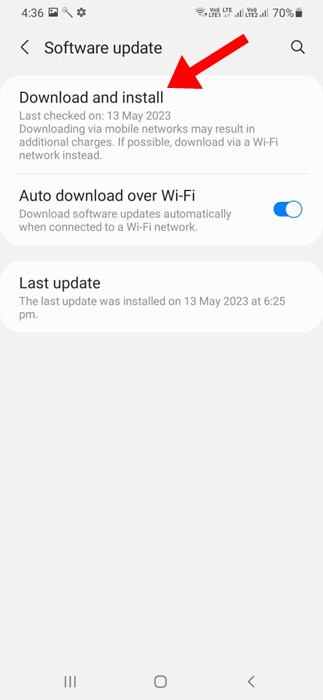
Your phone will look for all available updates. If any update is pending installation, install it.
11. Reach out to your Telecom Operator
If all methods fail to fix the Call drop issue on your Samsung Galaxy phone, the last resort is to contact your mobile carrier. You need to contact your telecom provider and ask them to fix the issue. You also need to explain to them all the troubleshooting steps you’ve tried to fix the problem.
The telecom operator will look into the issue and provide a solution. They may even ask you to get your SIM replaced.
This guide is about how to fix the call drop issue on a Samsung Galaxy phone. If you have followed all the methods carefully, the call drop issue is likely already fixed. Also, let us know which method helped you fix the call issue.
Comments
Post a Comment