Realtek Audio Console is compatible with most audio cards for PCs and laptops available on the market. It’s a universal audio driver that can greatly improve audio output quality. Let’s learn about the Realtek Audio Console in detail.
What is Realtek Audio Console?
Realtek Audio Console is a software package that delivers improved sound on your PC or Laptop. The package includes a set of Realtek audio drivers that are supposed to enhance the audio output on your device.
Since it’s a full-fledged audio package, you can use it to adjust the sound output of your connected audio devices. You can change the sound settings, apply different sound effects, etc.
Not only that, but the Realtek audio console even allows you to adjust the volume for each connected audio device individually. So, if you’re an audiophile, you shouldn’t download Realtek Audio Console at any cost.
Download Realtek Audio Console for Windows
If Realtek Audio drivers are installed on your device, there’s no point in downloading the Realtek audio console. You can use the Realtek audio manager to change the sound effects. If you cannot access the Realtek Audio Console or the Realtek Audio Manager, follow these steps.
1. Update Realtek Audio Console Drivers
Sometimes, updating the Realtek audio drivers resolves the audio problems. Hence, if you cannot open the Realtek Audio Console, you need to update the Realtek Drivers first.
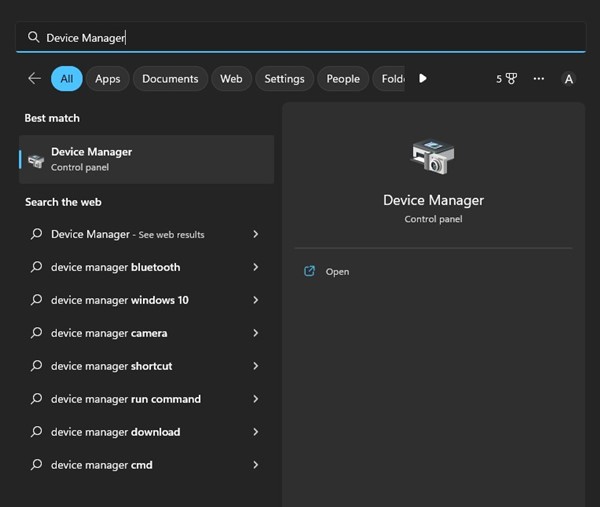
1. Open Device Manager from the Windows Search.
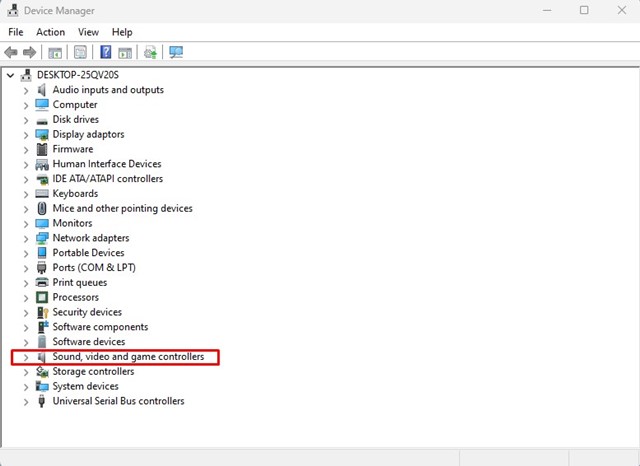
2. Expand the ‘Sound, video, and game controllers‘.
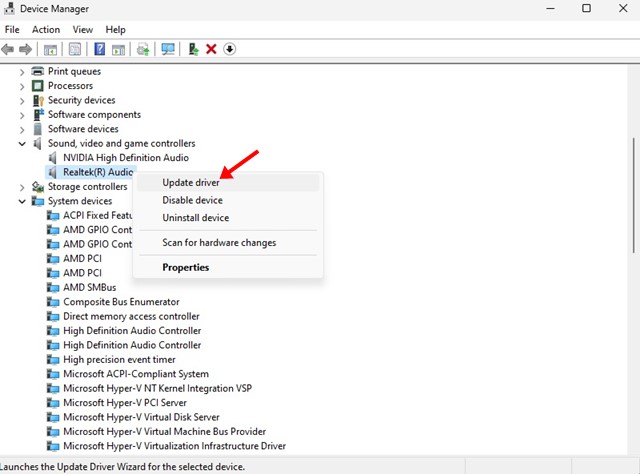
3. Right-click on the Realtek audio driver and select the Update driver option.
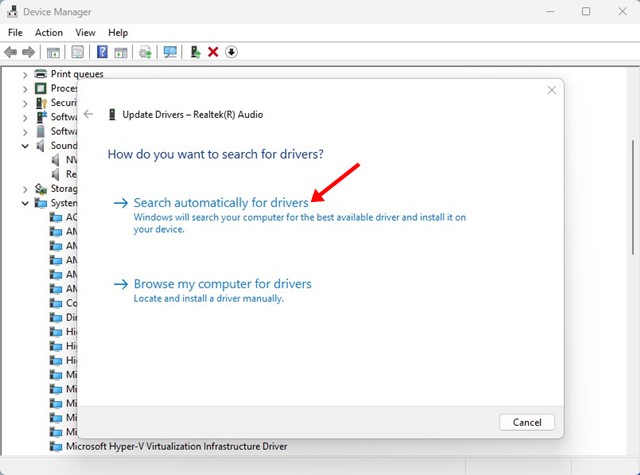
4. On how do you want to search for drivers? Prompt, select Search automatically for drivers.
2. Manually Download the Latest Realtek Audio Console Driver
If the above method fails to update the Realtek audio console drivers, you must download and install them manually.
1. Open your favorite web browser and head to this webpage.
2. Under the Available downloads, click on the Download button.
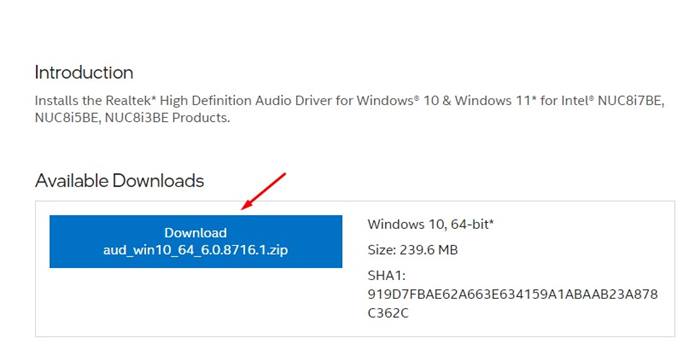
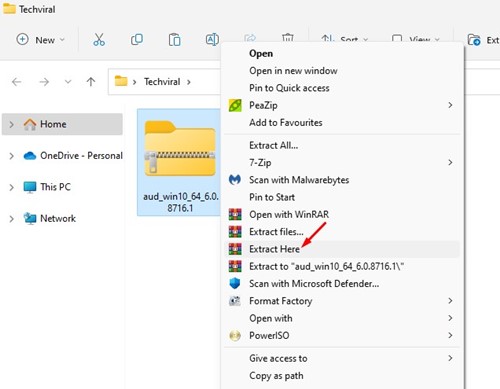
3. Extract the ZIP file on your computer.
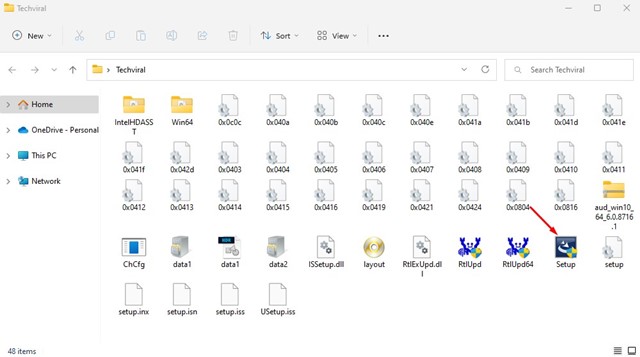
4. Run the Realtek High Definition audio setup file.
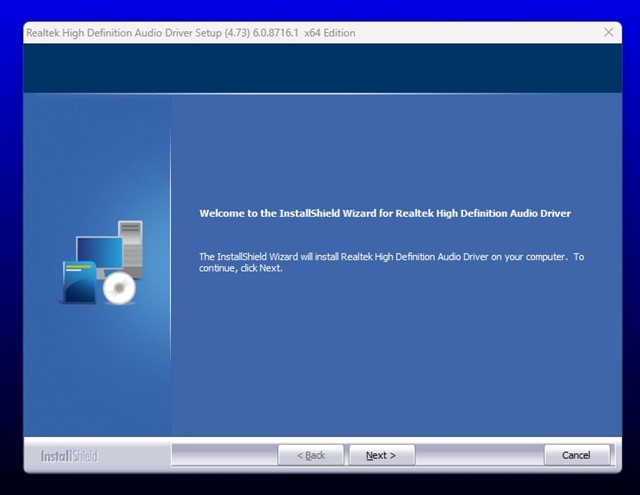
5. Follow the on-screen instructions to complete the installation process.
3. Use a third-party driver update tool
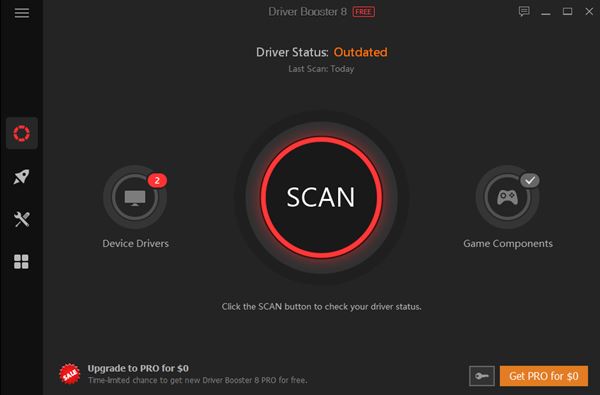
Another great way to update the Realtek audio console is to use a third-party driver updater tool. Hundreds of driver updaters are available for Windows that claim to update your device drivers in no time.
Most third-party driver updating software is free to download, but it tries to install a browser toolbar or additional apps. So, during the installation, make sure to exclude the bundled apps.
You can use driver updater tools for Windows to update your Realtek audio drivers. The latest Realtek drivers will access the full-fledged Realtek HD Audio Manager or Realtek Audio Console.
4. Update your Windows operating system

If you want an easy solution and want to install the latest Realtek audio console on your computer, you should update your Windows operating system.
Few would know, but Windows automatically installs all necessary drivers during system updates. So, if your device has an outdated version of the Realtek audio console, it will automatically install the latest version.
If no Realtek Audio Console is installed on your device, it will download and install it automatically. To update your Windows computer, head to Settings > Windows Updates > Check for Updates.
These are the best methods to download and update Realtek Audio Console on Windows. If you need more help downloading or updating the Realtek audio console on your PC, let us know in the comments.
Comments
Post a Comment