With the Performance Monitor, you can generate a log file of your device’s Performance report. After generating a log file, you can analyze it at a later time. Here’s how you can generate a System Performance report on Windows 11.
Open the Performance Monitor in Windows 11
Before generating the report, you should know how to open the performance monitor tool in Windows 11. Here’s how to open it.
1. Click your keyboard’s Windows key + R button to open the RUN dialog box.
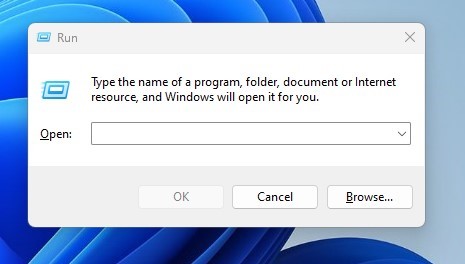
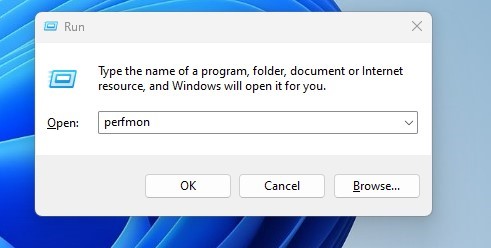
2. Type perfmon and click Ok.
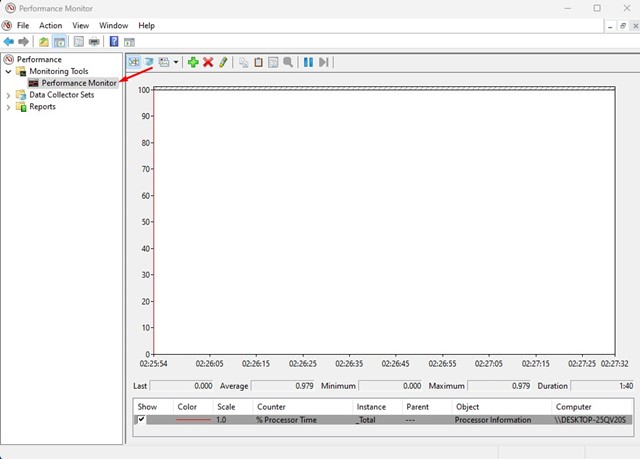
3. This will open the Performance Monitor on your Windows 11.
Generate System Performance Report in Windows 11
Now that you know how to access the Performance Monitor tool in Windows 11, you can use it to generate a full system performance report.
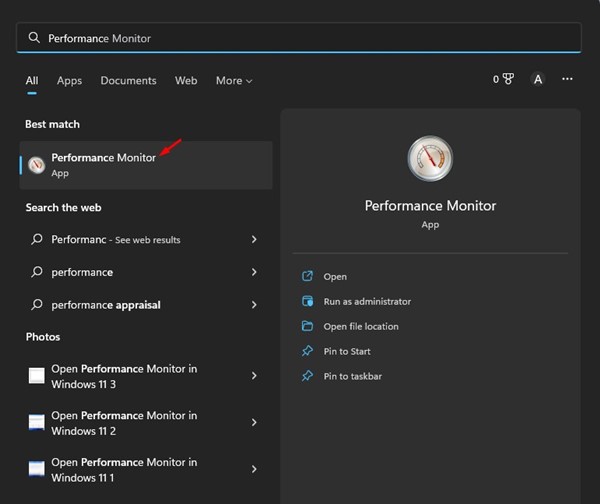
1. Click on the Windows 11 search and type in Performance Monitor. Next, open the Performance Monitor app from the list of available options.
2. Expand the Data Collector Sets.
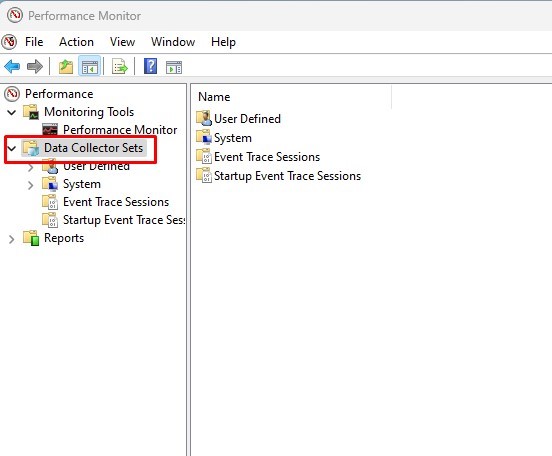
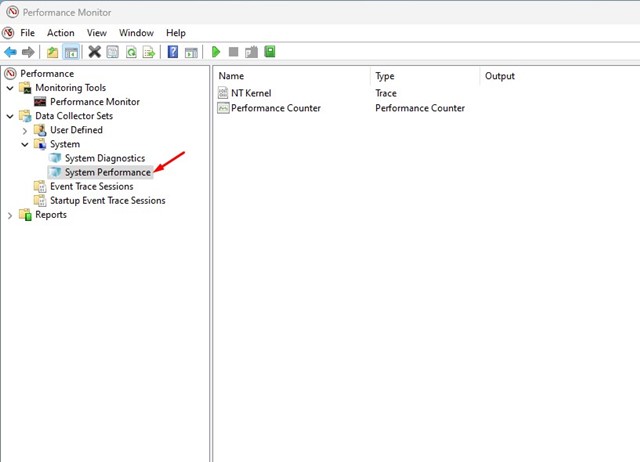
3. Expand the System and click on System Performance.
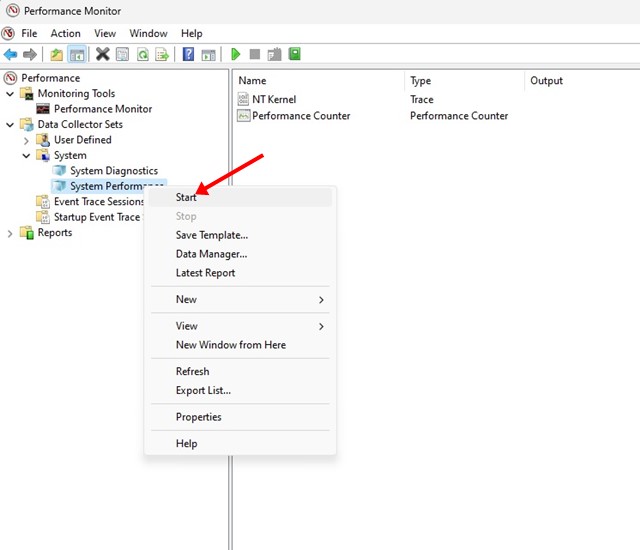
4. Right-click on System Performance and select Start.
5. You must wait a few seconds or minutes until the Performance Monitor generates the report.
6. After a few seconds, navigate to Reports > System > System Performance.
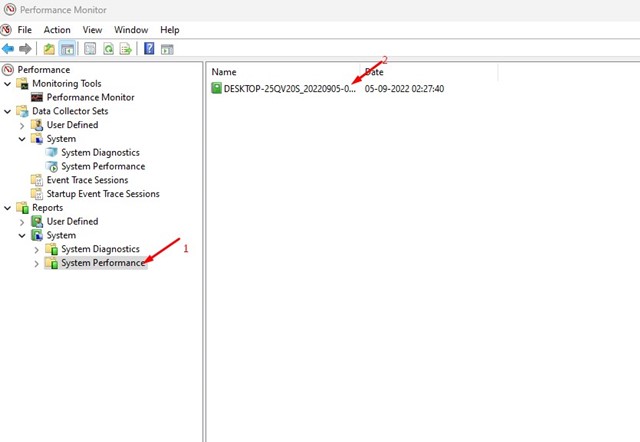
7. On the right side, you will find all generated reports. You can check the time stamp to know when Performance Monitor generated the report.
8. If you want to read the report, double-click on it.
9. The System Performance report will provide diagnostic details about your disk, network, CPU, Memory, and other system resources.
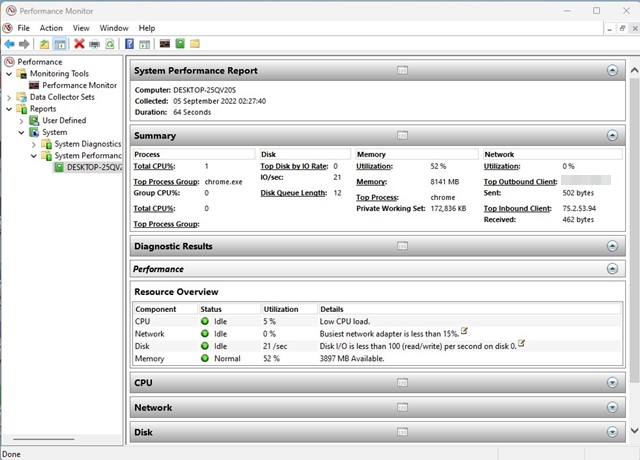
This is how you can use Performance Monitor on Windows 11 to generate a system performance report.
Other uses of Performance Monitor on Windows 11
Not only can the system report, but the Performance Monitor tool can also be used in other ways. It can help you check the crash logs, etc, as well.
However, understanding the reports of the Performance Monitor requires some expert help. If you’re a newbie, you will find using and understanding the tool difficult.
Comments
Post a Comment